Thought I’d document this problem I recently came up against in case it happens again!
Issue reported was that a particular Excel spreadsheet was slow to open, would often crash when saving and Excel generally be unresponsive.
Seeing as it only seemed to occur with this one file that was obviously the first place to start. It wasn’t a massively complicated file.
Six sheets.

Each sheet had exactly the same on it. A logo in the top left corner and various fields to fill out. This was basically an information gathering form. Members of staff would open this file which is the blank template on Monday, fill it out and save it somewhere else to be used for the rest of the week. There were no formulas or anything clever at all so it was a little odd this was causing so many issues.
Then I spotted the file size. It was 2.25MB. While that’s not a huge amount by modern standards, it’s still massive for what amounts to an almost empty file.
So at this point I thought I’d figured it out. It must be the logo in the top corner of each page. Someone has clearly inserted a massively high res version of the logo and each page. However, while that might explain the file size, why would it be performing so badly? I could understand if they were 100MB images. But six images across 2.5mb. That’s a few hundred kilobytes tops right?
Either way it seemed the best place to start. I planned to delete the logo and resave the file and see what happened
So I clicked onto the logo and pressed the delete key. Nothing happened. Thinking it was just me I pressed it again. No change. I tried a couple more times and the same thing happened. Weird. I checked the sheet wasn’t locked. Nope, not that.
So I clicked it dragged it across the page and that’s when I found the problem. (see my crude mock up!)
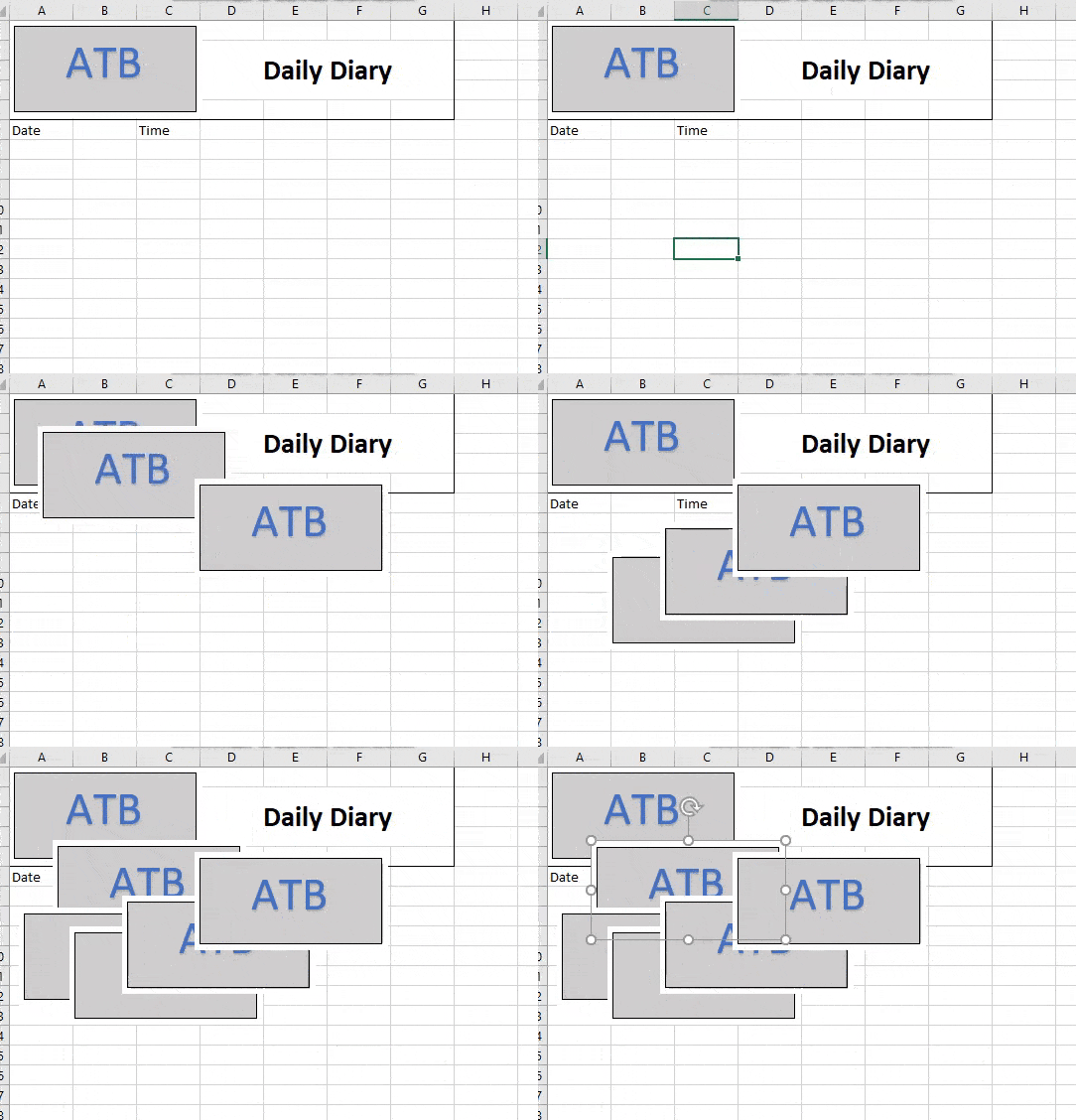
There were loads of copies of the logo all laid on top of each other.
So first thing, just to satisfy my curiosity I wanted to know exactly many images there were so I threw together a bit of rough VBA code to give me the total on each sheet, and the total amount in the whole workbook.
Sub Count_The_Logos()

Dim LogoCount As Long
Dim TotalCount as Long

Dim wrk As Worksheet

For Each wrk In ActiveWorkbook.Worksheets

   LogoCount = wrk.Shapes.Count
   TotalCount = TotalCount + LogoCount

   Debug.Print  wrk.Name & " - " & LogoCount

Next

Debug.Print "Total - " & TotalCount

End Sub
This is what it spat out
Monday – 2549
Tuesday – 2209
Wednesday – 1862
Thursday – 1132
Friday – 686
Sat + Sun – 1
Total – 8439
Yes that’s right. The workbook contained a total of 8,439 copies of the logo! No wonder it was struggling.
So the next job was to remove them all and see if that fixed the problem. Thankfully there is a pretty easy way of doing it. I could have repurposed the code but I think it’s useful to know how to do this anyway
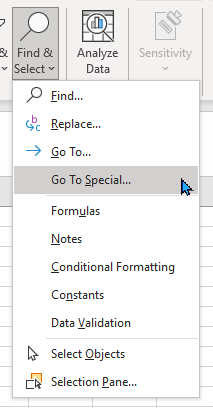
Frome the home tab click the Find and Select dropdown. Ignore the “Select objects” option, even though that seems the obvious one as that’s for selecting items one at a time.
Instead choose “Go To Special”
From there select “Objects”
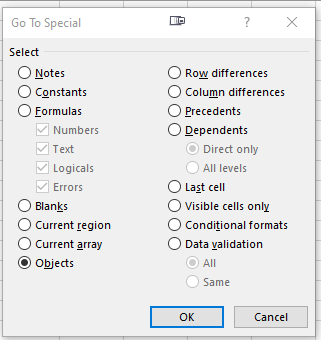
That will select every object in the workbook. In this case that means all the pictures but sure this is what you want. An object could be a lot of things in an Excel workbook
Then press the delete key
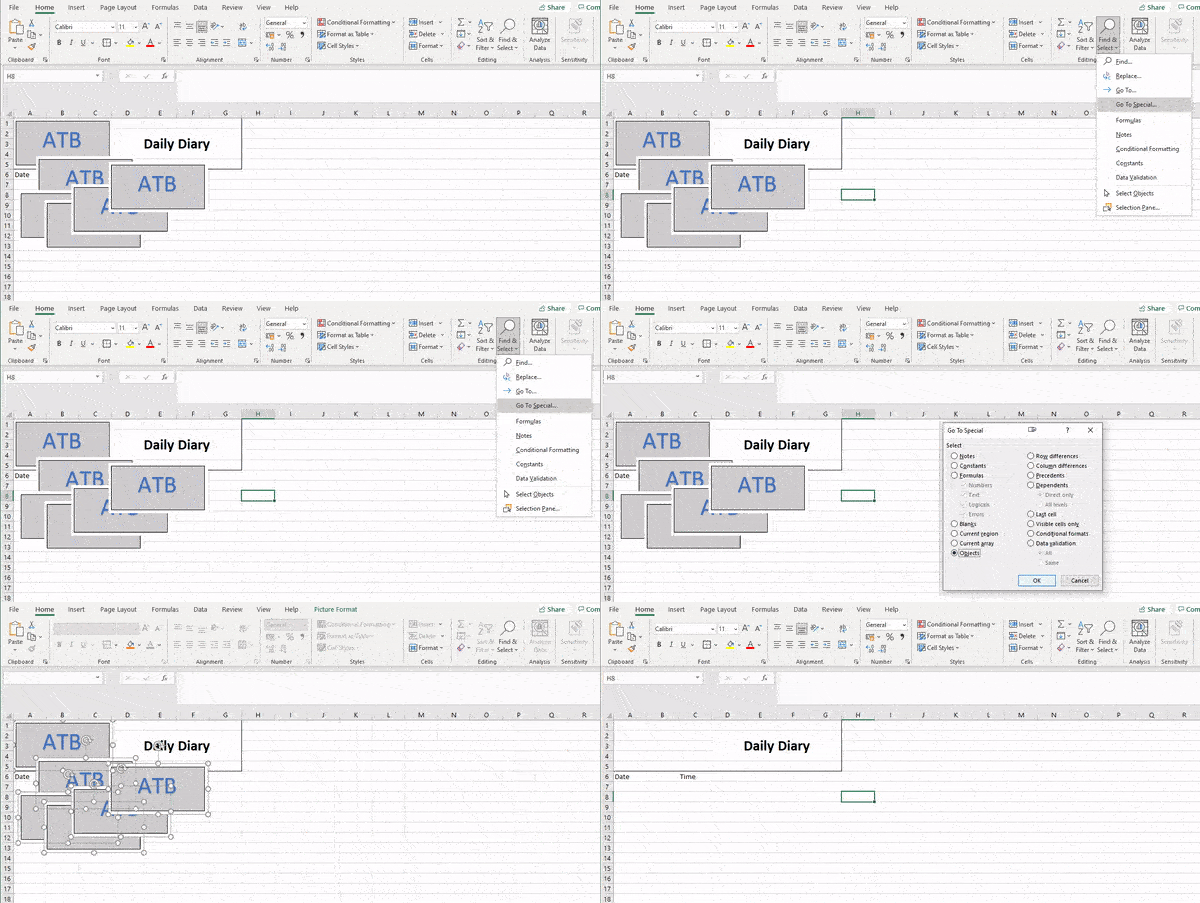
All gone! I then put a single copy of the logo on each page and saved the file. File size was now 112Kb and unsurprisingly the problems all went away.


Latest posts by Andy Parkes (see all)
- Dishley parkrun, Loughborough - August 1, 2023
- Woodgate Valley Country Park parkrun - July 22, 2023
- Abbey Park parkrun - June 8, 2023
